Wrp.html
The sample program Wrp.js (wrp.html) is an application that runs in a browser.
The wrp.html file will not work if you double-click it to open directly in a browser. Please place this file on a web server and open it from https:// or http://localhost/.
The reason why the wrp.html file doesn't work when opened directly in the browser by double-clicking is that sample programs from version 1.1.9 onwards use the AudioWorklet of the Web Audio API for audio processing, and this API doesn't work when the file is opened directly as file://. If you want to run it by opening the file directly, please use the wrp.html in the DEPRECATED folder. However, the files in this folder use the deprecated API ScriptProcessorNode, which may become unusable in the future. Also, sample programs using ScriptProcessorNode will not be updated in the future.
- To run, you need to set your own API key displayed on MyPage
- Please note that usage fees will be incurred according to the speech recognition used
Preparation
Here, we explain the procedure for running the sample program in an environment where Python3 is installed.
- Download the sample program and extract it to any directory on your local machine.
- Open the extracted directory in the terminal
- Execute the following command to start the HTTP server.
python3 -m http.server --bind localhost 8081
- Access the following in your browser to open the sample program.
http://localhost:8081/Wrp/javascript/wrp.html
You should see a screen like the following execution example.
Execution Example
- When you access it in your browser, it will be displayed as follows.
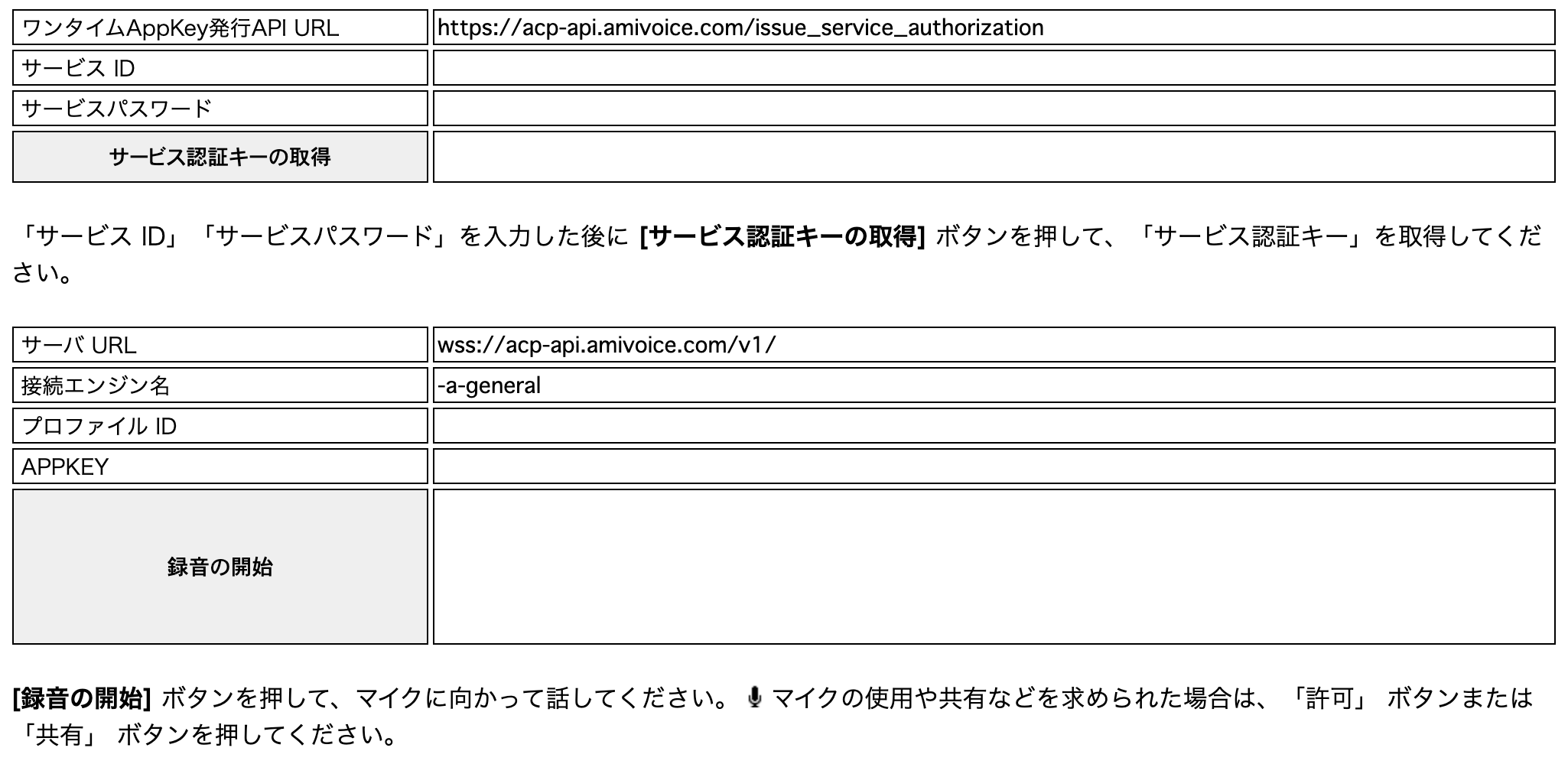
- Copy the value from the [Service ID] field on MyPage and paste it into the [サービス ID] field.
- Enter the [Service Password] from MyPage into the [サービスパスワード] field.
- Click the [サービス認証キーの取得] button.
- Confirm that the API key has been entered in [APPKEY]. Alternatively, you can directly enter your own API key displayed on MyPage without doing steps 2-4.
- Click the [録音の開始] button.
- Click [Allow] in the microphone usage permission dialog.
- Speak freely in Japanese.
- In the lower half of the page, the recognized text and events sent from the server will be displayed one after another.
Encoder Settings
From version 1.1.12 onwards, you can use encoders to compress audio data. There are three types of encoders, and the way of compression differs depending on which one you use. The differences and usage of each are explained below.
Types of Encoders and Compression Formats
In Wrp.js, the following three types of encoders can be used:
encoder_opus.jsencoder_opus_ogg.jsencoder_adpcm.js
Depending on the combination of these, the audio data format, compression ratio, and CPU load for encoding are as follows:
| Encoder | Codec | Container Format | Bit Rate | Compression Ratio | CPU Load |
|---|---|---|---|---|---|
| 1 only | Opus | Custom format | 24 kbps | About 9.4% | Higher |
| 1 & 2 | Opus | Ogg format | 24 kbps | About 9.4% | Higher |
| 3 only | ADPCM | Custom format | 64 kbps | 25% | Very low |
If no encoder is used, the audio data is not compressed. Also, in any of the above cases, there is little difference in recognition accuracy compared to the uncompressed case. If the specs of the terminal performing the processing are not satisfactory or if there is not enough CPU margin, we recommend using "3 only" (ADPCM). Otherwise, we recommend using "1 only" (Opus).
For Opus, you can change the compression ratio by rewriting the following part of recorder.js. The default is 24kbps. Note that extreme compression may reduce recognition accuracy.
		if (!encoder_ && recorder_.opusPacking && window.Encoder && window.Encoder.createOpusEncoder) {
			encoder_ = window.Encoder.createOpusEncoder(audioSamplesPerSec_, /* bitsPerSec */ 24000, /* vbr: VBR */ 1, /* application: AUDIO */ 1, /* complexity */ 10);
		}
How to Use Encoders
In the head of the wrp.html file, there is the following description:
  <script type="text/javascript" src="encoder_adpcm.js"></script>
  <script type="text/javascript" src="encoder_opus.js"></script>
  <script type="text/javascript" src="encoder_opus_ogg.js"></script>
Depending on the encoder you want to use, keep the necessary parts from this section and delete the unnecessary parts. If you don't want to use any encoder, delete all of them.
Note that if all three types are listed as in the default, encoder_opus.js and encoder_opus_ogg.js will be used. Since leaving unnecessary code will slightly increase the loading time, it is recommended to delete the encoder_adpcm.js description even when using encoder_opus.js and encoder_opus_ogg.js.
The AmiVoice Tech Blog has verified the changes in speech recognition accuracy based on compression rates, so please refer to it.
[We Tested It!] How does speech recognition accuracy change with sampling rate and compression rate?