How to Issue API Keys on MyPage
On MyPage, you can issue API keys, as well as view and delete API keys that have been previously issued on MyPage.
Operations related to API keys on MyPage can be performed in the [Connection Information] section by scrolling down from [MyPage TOP]. You can directly access [MyPage TOP] through this link. Login is required to access MyPage.
Steps to Issue an API Key
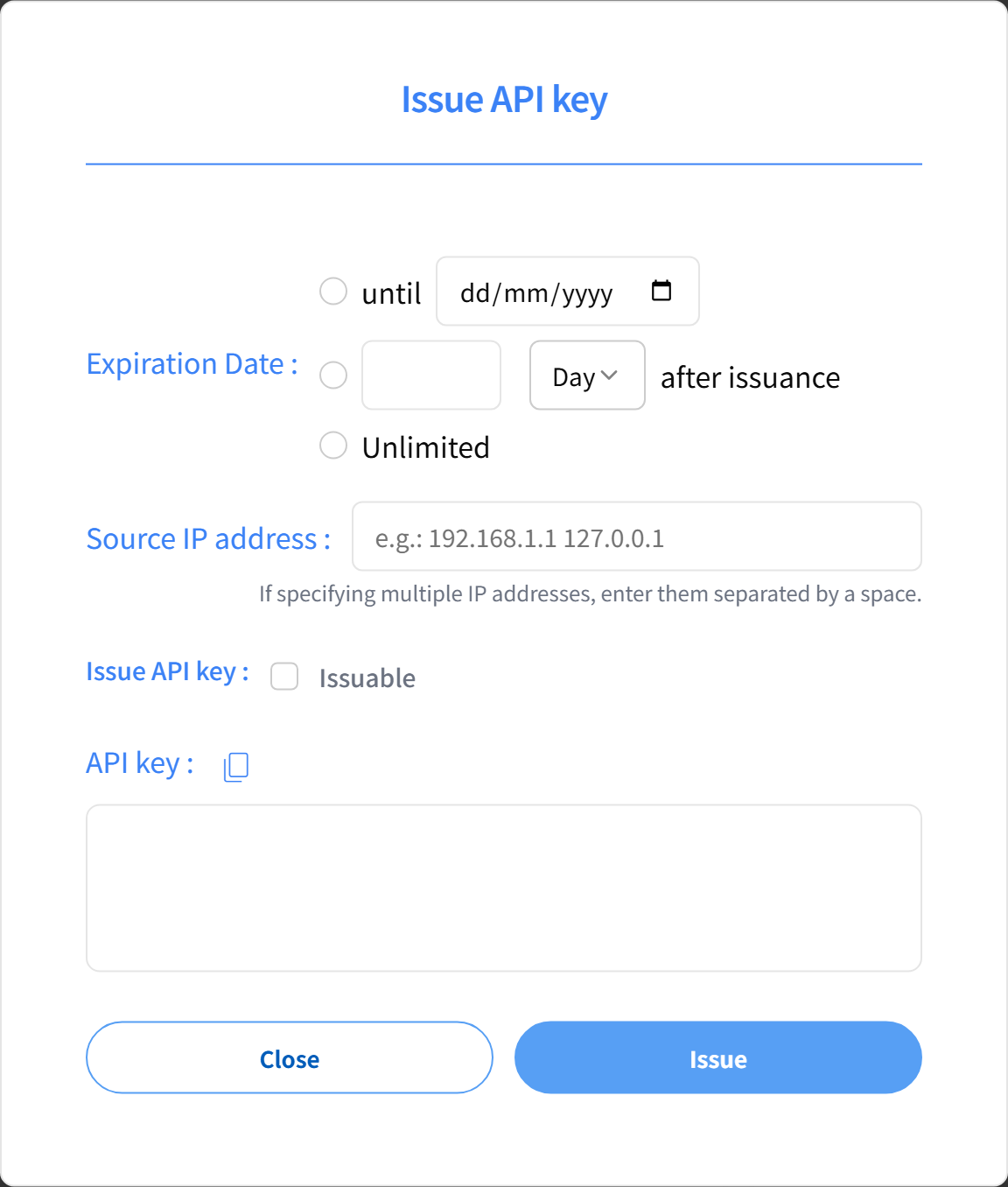
- Click the "Issue API Key" button in the [Connection Information] section. The "Issue API Key" window will appear as shown in the figure below.
- In the displayed window, set the expiration date, source IP address, and API key issuance feature as needed. For details, please see Additional Features and Restrictions.
- Click the [Issue] button, and the issued API key will be displayed in [API Key]. You can still check it even after closing the "Issue API Key" window.
Additional Features and Restrictions
Expiration Date
You can choose to specify the expiration date either by selecting a specific date or by setting a duration from the issuance date. The duration can be specified in hours or days. Selecting [Unlimited] will issue an API key without an expiration date.
Source IP Address
You can specify restrictions on the source IP addresses that can use the issued API key. If left blank, the API key will have no IP address restrictions.
To specify a range of IP addresses, you can use CIDR notation.
Example: 203.0.113.0/24
To specify multiple IP addresses or ranges, separate them with spaces.
Example: 203.0.113.0/24 198.51.100.0/24
API Key Issuance Feature
If you want to grant the API key issuance feature, check the [Issuable] checkbox in the [Issue API Key] section.
Checking Issued API Keys
API keys issued on MyPage are listed in [Connection Information]. You can view each API key by clicking [Show] in the [API Key] column of the table. You can also check the settings for expiration dates and IP address restrictions in the [Restriction] column.
- The presence or absence of the API key issuance feature cannot be confirmed.
- API keys issued using the API Key Issuance API are not displayed in the list.
Steps to Delete an API Key
API keys issued on MyPage can be manually deleted on MyPage.
- In [Connection Information], check the checkbox of the API key you want to delete and click the [Delete] button.
- A confirmation screen titled [Delete API Key] will appear. After confirming that the API key is correct, click the [Delete] button.
- An authentication code will be sent to the email address registered to your account. Enter this code in the [Authentication Code Confirmation] screen displayed on MyPage and click the [Send] button.
- The API key deletion will be completed, and you will receive an email notifying you of the API key deletion at the email address registered to your account.
- There is a limit to the number of API keys that can be deleted. Each account can delete up to 20 API keys in total.
- Deleting an API key is intended for cases where there is a security risk, such as a suspected leak of the API key. If you want to periodically update API keys or temporarily suspend their use, use the Expiration Date setting instead of deleting them.
- API keys that accounts created before the MyPage renewal on 2025/06/30 initially possess cannot be deleted. To delete them, you need to cancel your membership and create a new account.
- API keys issued using the API Key Issuance API cannot be deleted.